Getting Started
The following setup will show you how to enable semantic search on arbitrary video in the Eluvio Content Fabric. Everything is configured through the Content Search API
1. Create a content object for the index
A search index must be associated with a content object in the Content Fabric. The easiest way to create one is through the Fabric Browser application.
- Navigate to https://core.v3.contentfabric.io/apps/Fabric%20Browser#/ and sign in with your private key
- Click on the library you wish to add the content object to
- Click on "More Options" -> "Create"
- Once the creation finalizes: copy the object's content id (qid) and the Auth Token for the next step.
2. Create the index
Create the index on that content object, listing the qids of the contents to search over and the features to search on. See the API docs: Create an index.
POST /vector_search/indexes/<index_qid> HTTP/1.1
Host: ai-04.contentfabric.io
Authorization: Bearer <token>
Content-Type: application/json

{
  "qids": ["<qid1>", "<qid2>"],
  "features": ["video_description", "speech"]
}
Each feature defines a set of tagger jobs which will run on every content in the index. To see which features you can use, call List feature presets (GET /vector_search/features). Shot detection will also be run by default so clips align to shot boundaries.
Note: in order for the clip search API to return playable clips, the given qids must be VOD/Title-Mezzanine type.
Features, aggregation, and search defaults can all be changed later — see Search Configuration.
Using tags you already have
If you would rather index tags you produced yourself, give the feature a list of tracks instead of letting it run a model. No tagging job is started, and you are responsible for the tracks existing in the tagstore.
{
  "qids": ["<qid1>"],
  "features": [{"name": "captions", "tracks": ["subtitles_en", "subtitles_es"]}]
}
Tags can be written directly with the tagstore API: Post tags. Tagging jobs can also be driven by hand with the tagger API: Start tagging.
3. Check progress
Tagging and indexing are asynchronous. A single call reports both the per-content tagging jobs and the share of tags embedded so far. See the API docs: Check indexing progress.
GET /vector_search/indexes/<index_qid>/status HTTP/1.1
Host: ai-04.contentfabric.io
Authorization: Bearer <token>
{
  "qid": "<index_qid>",
  "indexing": {"qid": "<index_qid>", "total_tags": 5120, "embedded_tags": 4096, "progress": 0.8},
  "tagging": [
    {
      "qid": "<qid1>",
      "jobs": [
        {"feature": "speech", "model": "asr", "job_id": "...", "status": "running", "created_at": "...", "progress": 0.6, "error": null}
      ]
    }
  ]
}
Only the most recent job for each model is reported. If a job has failed, its error says why.
4. Refreshing a feature
Refreshing a feature can be necessary to respond to upstream changes such as modifying the person ground truth pool in the case of the "people" feature. Refresh a feature.W
Finding your indexes
List indexes returns the clip-search indexes you have access to, with their fields and search defaults. Tenant and content admins can pass tenant to see every index in that tenant.
GET /vector_search/indexes?tenant=<tenant_id> HTTP/1.1
Host: ai-04.contentfabric.io
Authorization: Bearer <token>
To see a single index, including the titles of the contents it covers, use Get index metadata (GET /vector_search/indexes/<index_qid>).
Using the search
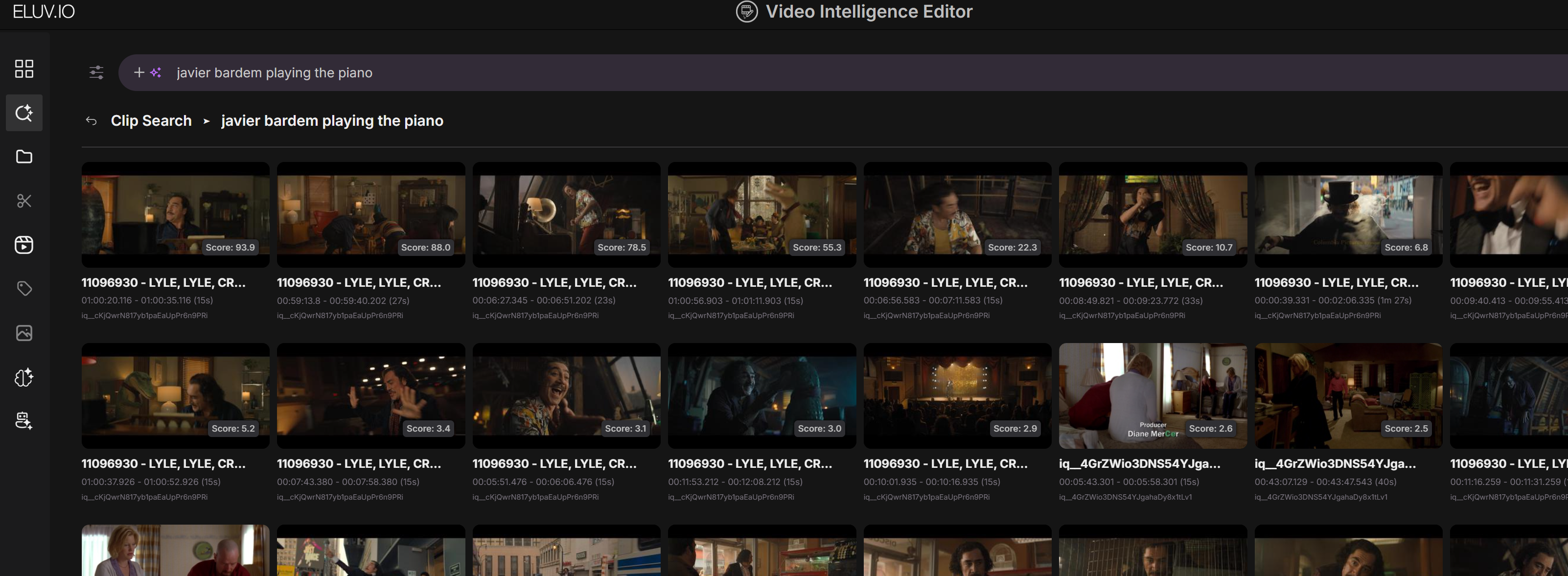
Search is available as soon as tags start landing. See the API docs: Search for clips.
GET /vector_search/indexes/<index_qid>/clip_search?terms=<query> HTTP/1.1
Host: ai-04.contentfabric.io
Authorization: Bearer <token>
EVIE
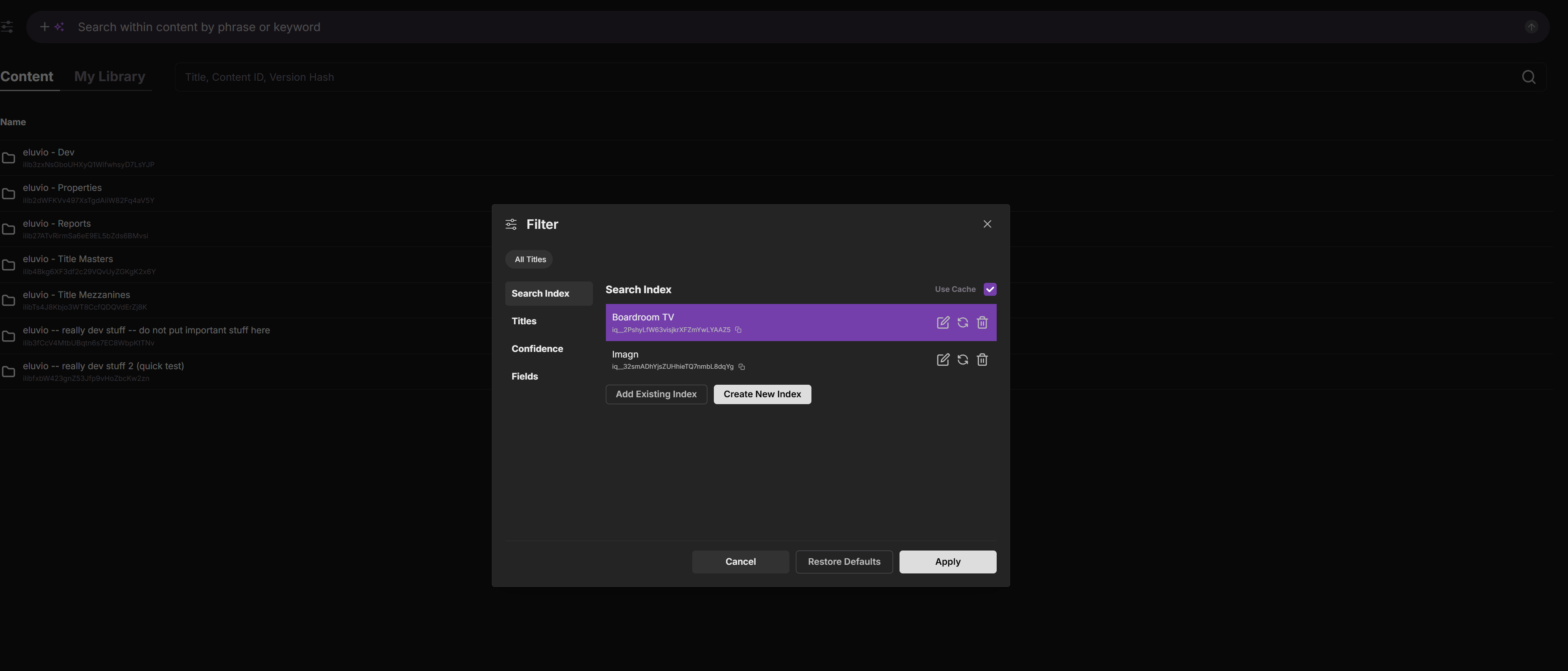
Click on index configuration

Select Add Existing Index and enter the content id for the index.